
JavaScript — Interactivity
HTML gives structure, CSS gives style, JavaScript gives behaviour.
Without JavaScript, a website can be read but can’t respond. JavaScript listens for events — clicks, key presses, form submissions — and changes the page in response, which is the fundamental mechanism behind almost all interactivity on the web.
Beginner Explanation
Variables are named containers that store data — a user’s input, a count, a piece of text — using let (for values that change) or const (for values that don’t). Functions are reusable blocks of code that perform a specific task when called; instead of repeating the same logic in five places, you write it once as a function and call it wherever it’s needed — the same instinct that later leads naturally into components (Chapter 6).
Events are actions the browser can detect and respond to — a click, a key press, a form submission, a page load. JavaScript "listens" for these events and runs code in response, which is the fundamental mechanism behind almost all interactivity on the web. Buttons, menus, sliders, forms, popups, and tabs are all common interface patterns built by combining events with logic that changes what’s on screen — none of them are special browser features, they’re all just HTML and CSS being manipulated by JavaScript in response to events.
Fetching data from APIs is how a page pulls in information from somewhere else on the internet without needing to reload — live weather, exchange rates, a list of blog posts from a database. This is done using JavaScript’s fetch() function, and it’s the technique that turns a static page into a genuinely dynamic application. Chapter 11 explores APIs in much more depth.
The framework’s foundational example:
const button = document.querySelector("#quoteBtn");
button.addEventListener("click", () => {
  alert("Quote request started");
});
document.querySelector("#quoteBtn") finds the HTML element with the id quoteBtn and stores a reference to it in the variable button. addEventListener("click", ...) tells the browser "when this element is clicked, run the following function." This three-part pattern — select an element, listen for an event, run a function — is the backbone of the vast majority of interactive JavaScript on the web.
Real Business Examples
A "Get a Quote" button
The snippet above reveals a hidden quote form the moment a visitor clicks — no page reload, no waiting.
A mobile hamburger menu
A click event toggles a CSS class that slides a navigation menu open and closed on small screens.
Live data without a reload
A restaurant’s site uses fetch() to pull today’s specials from a database and display them instantly, without the visitor ever refreshing the page.
Visual Diagram
The interactive pattern
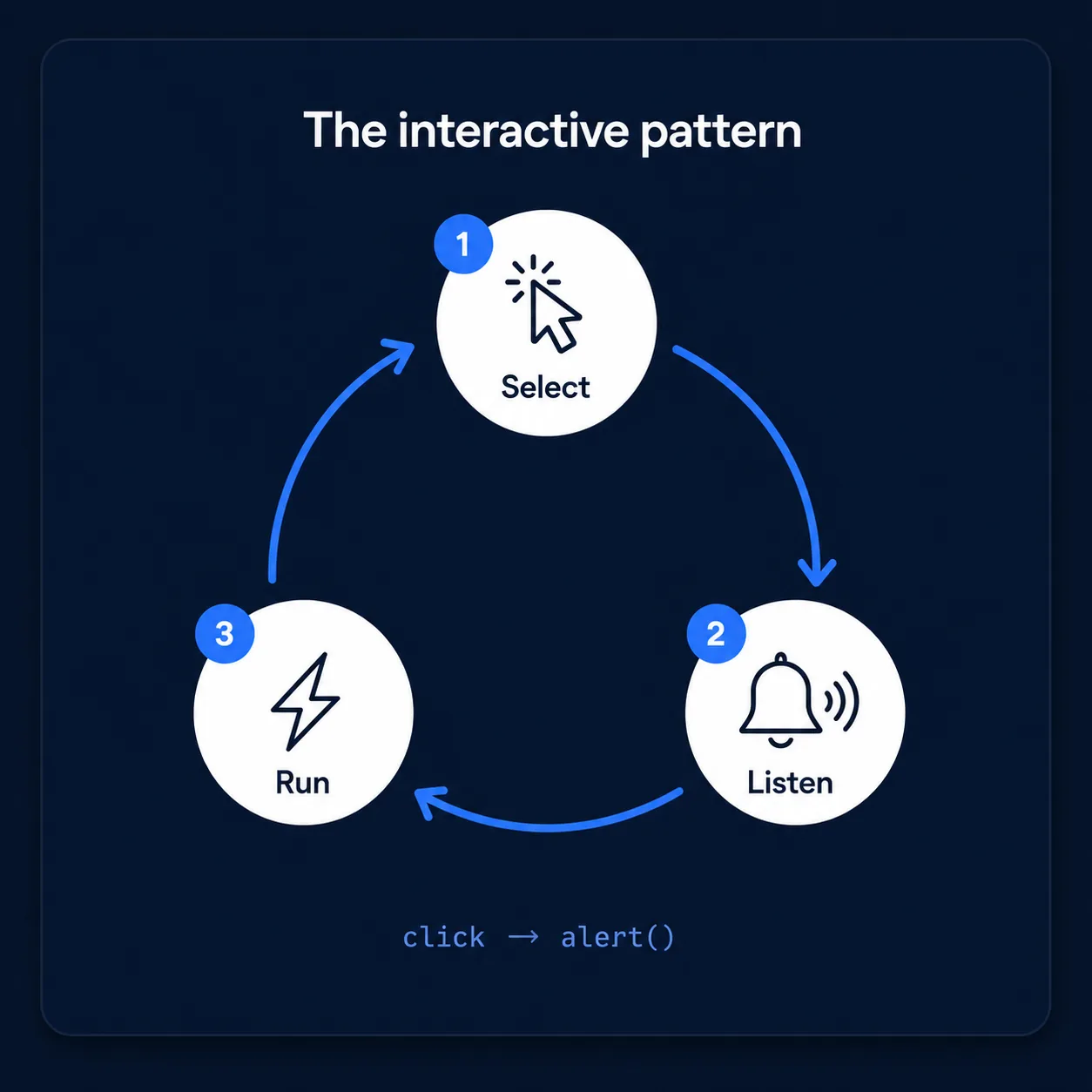
- Select an element — document.querySelector("#quoteBtn")
- Listen for an event — .addEventListener("click", ...)
- Run a function — the code that actually responds (show a form, fetch data, update text)
Common Mistakes
- Writing logic that assumes an element always exists — not handling the case where #quoteBtn (or an API call) fails.
- Scattering event listeners everywhere instead of writing clean, reusable functions — which makes a growing codebase hard to maintain.
- Relying on alert() and similar blocking popups in real interfaces instead of updating the page in place.
Tools to Use
Browser Console
Test JavaScript snippets live against a real page before committing them to a file.
fetch() / Fetch API
The built-in browser tool for pulling data from external sources (APIs) without a full reload.
ESLint
Catches common JavaScript mistakes automatically as you write.
CodePen / JSFiddle
Quick sandboxes for experimenting with small interactive snippets.
Key Takeaways
- JavaScript adds behavior: it listens for events and changes the page in response.
- The core interactive pattern is: select an element → listen for an event → run a function.
- fetch() lets a page load data from external sources (APIs) without a full page reload.
- Writing clean, reusable functions early prepares you naturally for component-based frameworks later.
Practical Exercises
- Add a "Get a Quote" button to a practice page. Use JavaScript to listen for a click, and instead of alert(), reveal a hidden <div> containing a short form by toggling a CSS class.
- Extend it: disable the button and change its label to "Sending..." the moment it’s clicked, to practice giving the user feedback.
Want "JavaScript — Interactivity" done for you, not just explained?
We build fast, mobile-first websites for South African local businesses — putting everything in this chapter into practice, professionally.