HTML — The Structure
The skeleton of every website.
HTML (HyperText Markup Language) describes what each piece of content is — headings, paragraphs, images, links, buttons, forms — without touching how anything looks or behaves. Every other phase builds on top of this structure.
Beginner Explanation
Every HTML element is a labelled container. A heading tag tells the browser "this text is a heading." A paragraph tag says "this is a block of body text." A button tag says "this is something a user can click." The browser — and, importantly, screen readers, search engines, and other machines — use these labels to understand and correctly process your content, which is why HTML quality affects both accessibility and SEO.
Headings (<h1> through <h6>) create a hierarchy of importance, much like an outline in a document. <h1> is the most important heading on a page and should generally appear only once per page. Skipping levels — jumping from <h1> straight to <h4> — is a common beginner mistake that confuses both screen readers and search engines. Images (<img src="..." alt="...">) embed visual content, and the alt attribute is not optional in professional work — it describes the image for screen readers and is shown if the image fails to load.
Semantic tags — header, main, section, article, footer, nav — are HTML elements that describe the role of a block of content rather than just its appearance. A <div> says nothing about what’s inside it; a <header> announces "this is the introductory content of the page or section," and an <article> announces "this is a self-contained piece of content that could stand on its own." Professional developers default to semantic tags wherever a suitable one exists, because browsers, screen readers, and search engines all use them to understand page structure without guessing.
Here’s the framework’s worked example — a simple, semantically correct section:
<section>
  <h1>Reliable Plumbing Services</h1>
  <p>Fast, affordable plumbing in Johannesburg.</p>
  <button>Get a Quote</button>
</section>
Read purely as structure, this tells the browser: "here is a self-contained section of the page; inside it is a top-level heading, a paragraph of supporting text, and a clickable action." Nothing here describes colour, font, size, or position — that description is deliberately left out, because HTML’s job stops at meaning.
Real Business Examples
Headings as an outline
A services page uses one <h1> for the page title, then <h2> for each service category, and <h3> for details underneath — exactly like an outline in a document, never skipping a level.
Real buttons vs. styled divs
A "Get a Quote" button built with an actual <button> element gets free keyboard accessibility; a styled <div> pretending to be a button does not, and screen-reader users may not even know it’s clickable.
Forms as the lead-generation backbone
A contact form built from <form>, <input>, and <textarea> is what turns an anonymous visitor into a name, phone number, and enquiry a business can actually follow up on.
Visual Diagram
A minimal semantic page
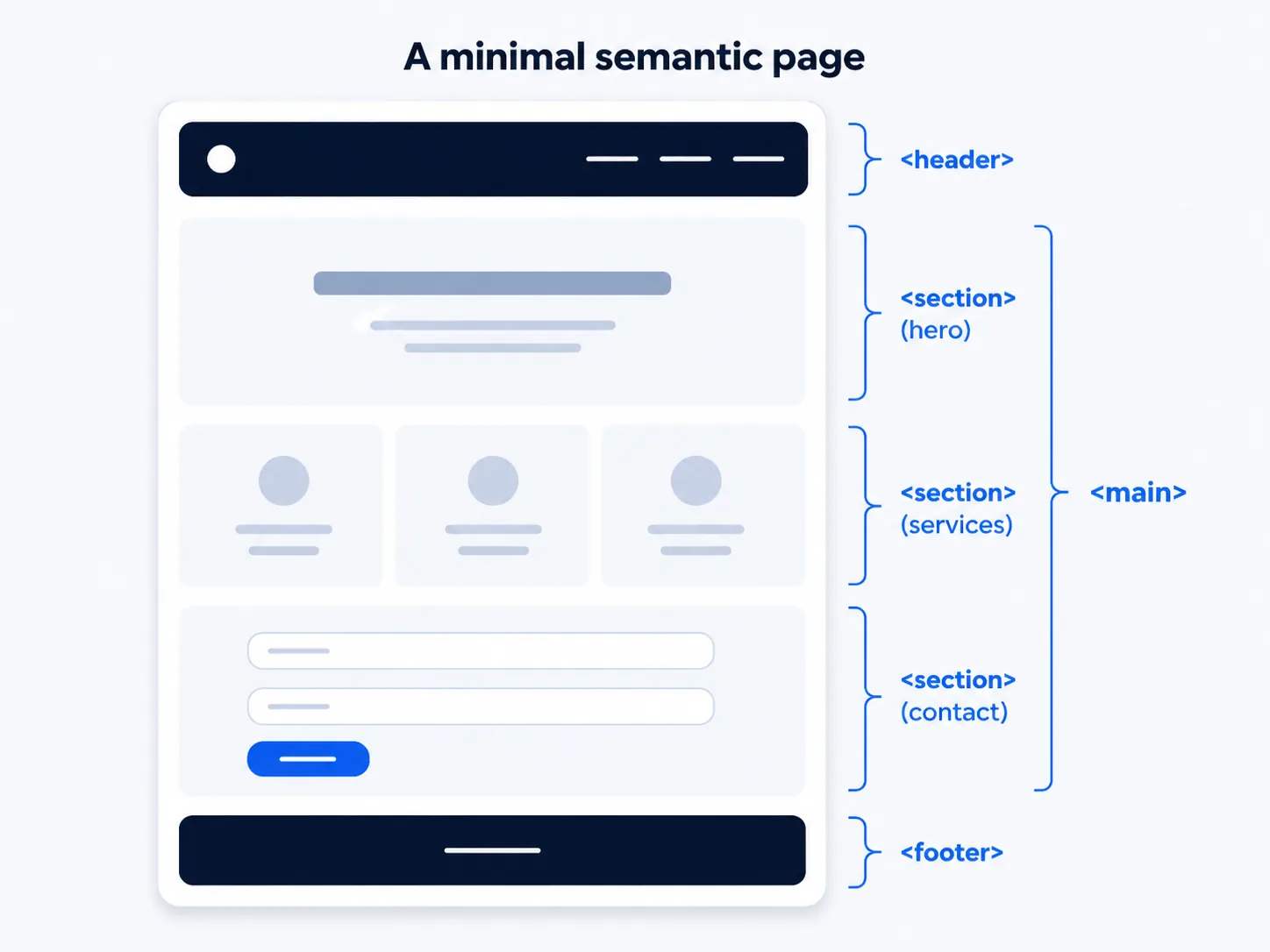
- <header> — logo and navigation
- <main> — the page’s primary content
- <section> — hero banner (h1, p, button)
- <section> — services grid
- <section> — contact form
- <footer> — copyright, links, contact details
Common Mistakes
- Skipping heading levels — jumping from <h1> straight to <h4> confuses both screen readers and search engines.
- Using a styled <div> instead of a real <button> for clickable actions, losing built-in keyboard accessibility.
- Leaving off the alt attribute on <img> tags — it’s not optional in professional work; it describes the image for screen readers and shows if the image fails to load.
- Using <table> for page layout instead of genuinely tabular data — an outdated 1990s practice modern CSS has fully replaced.
Tools to Use
Browser Inspector
View any page’s actual HTML structure and compare it to your own.
W3C HTML Validator
Free tool that checks a page’s HTML for structural errors.
Screen reader (VoiceOver / NVDA)
Test how your semantic structure actually sounds to a real assistive-technology user.
MDN Web Docs
The standard reference for every HTML element and its correct use.
Key Takeaways
- HTML describes what each piece of content is, not how it looks — that separation of concerns is fundamental to modern web development.
- Headings should form a logical, unskipped hierarchy (h1 → h2 → h3).
- Semantic tags (header, main, section, article, footer, nav) give structure real meaning for browsers, assistive technology, and search engines.
- Always use <button> for actions and <a> for navigation — never substitute styled <div> elements for either.
Practical Exercises
- Build a simple HTML page for a fictional business (a bakery, a gym, anything) using only semantic tags: a <header> with a <nav>, a <main> containing at least two <section> elements, and a <footer>.
- Don’t add any CSS yet — the goal is to practice structuring content correctly before it’s styled.
Want "HTML — The Structure" done for you, not just explained?
We build fast, mobile-first websites for South African local businesses — putting everything in this chapter into practice, professionally.